To Customize Revenue or Assets in the Advanced Reports Table
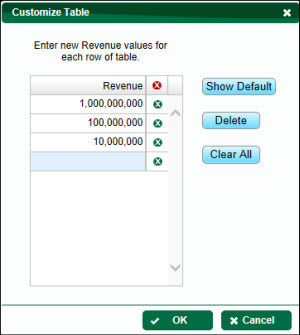
| 1. | From the Advanced Reports table: Click the Customize button below Revenue/Assets. This will take you to the Customize Table dialog box. |
| 2. | Enter new Revenue or Assets values (depending on the industry code selected) for each row of the table: |
•To Display the Default Table: Click on the Show Default button.
•To Delete a Value/Row: Select a row in the table and click the Delete button. A minimum of three (3) values must be displayed.
•To Clear All Values: Click the Clear All button and reenter a minimum of three (3) new values that fall in between the range minimum and range maximum values available.
| 3. | Click the OK button to return to the Advanced Reports table. |