The Planning Date is initially set to the computer's system date, or "today's" date. If this date does not equal the "Database Date," a non-zero Annualized Salary Trend will display. (Only differences greater than or equal to one month have an effect.) All salaries will be adjusted by this percentage to reflect the increase or decrease of salaries due to time. This prorated percentage is compounded monthly. The source of the default Annualized Salary Trend value is the latest quarter’s ERI Salary Increase Report.
Note: When any of the top six executive titles is chosen, the default Annualized Salary Trend is not used to trend the data forward or backward; the application uses actual public data to trend it. In this case, the Annualized Salary Trend in Adjustments to Compensation Analyses will display "data driven," and the Adjustments button will not appear to the right of the Salary Planning Date. See FAQ #7 for information on setting the salary planning date for the top six executives.
Also note: The Executive Compensation Assessor reports the most recently available data. When you set the Salary Planning Date back in time, the application trends the most recent data to the selected date. It does not pull data from a historical database.
To Change the Salary Planning Date
| 1. | From any main table, click the Adjustments to Compensation Analyses banner. |
| 2. | In Salary Adjustments, click on the Salary Planning Date field and a monthly calendar displays. |
| 3. | Click on the right or left arrow at the top of the calendar to move from month to month OR use the drop-down menu next to the month field. |
| 4. | Select the year using the drop-down menu next to the year. |
| 5. | Click on a particular day to select a new date. |
To Change the Rate
1.Select any title except one of the top six executive titles (see note above).
2.From any main table, click the Adjustments to Compensation Analyses banner.
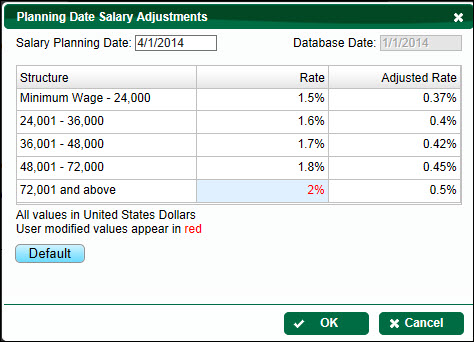
3.In Salary Adjustments, click the Adjustments button to the right of the Salary Planning Date. This will take you to the Planning Date Salary Adjustments dialog box.
4.Click in the cell of the percentage you want to change in the Rate column and type in the new percentage.
5.Click the OK button. Any adjusted percentages will be shown in red font.
Please note: The Adjusted Rate (a prorated salary trend) cannot be changed directly and will always be a fraction of the Rate (the annualized salary trend) based on the salary planning date. For example, if the Salary Planning Date chosen is 11 months into the future, then the Adjusted Rate will be approximately 11/12ths of the Rate.
To Restore Default Settings
| 1. | Follow steps 1 and 2 for "To Change the Salary Planning Date" above. |
| 2. | Click the Default button to restore the Rate defaults. |
| 3. | Click the OK button. |
See Individual Profile Background - Salary Planning Date for more information.